
Housekeeping in Jira: How to Remove Unused Apps and Clean Up What They Left Behind
It's easy to let unused apps linger in your Jira environment long after you've stopped paying for them. They create confusion, slow things down, and leave behind a mess most admins don't spend the time to remove. Here's how to clean them up the right way. · Read more →
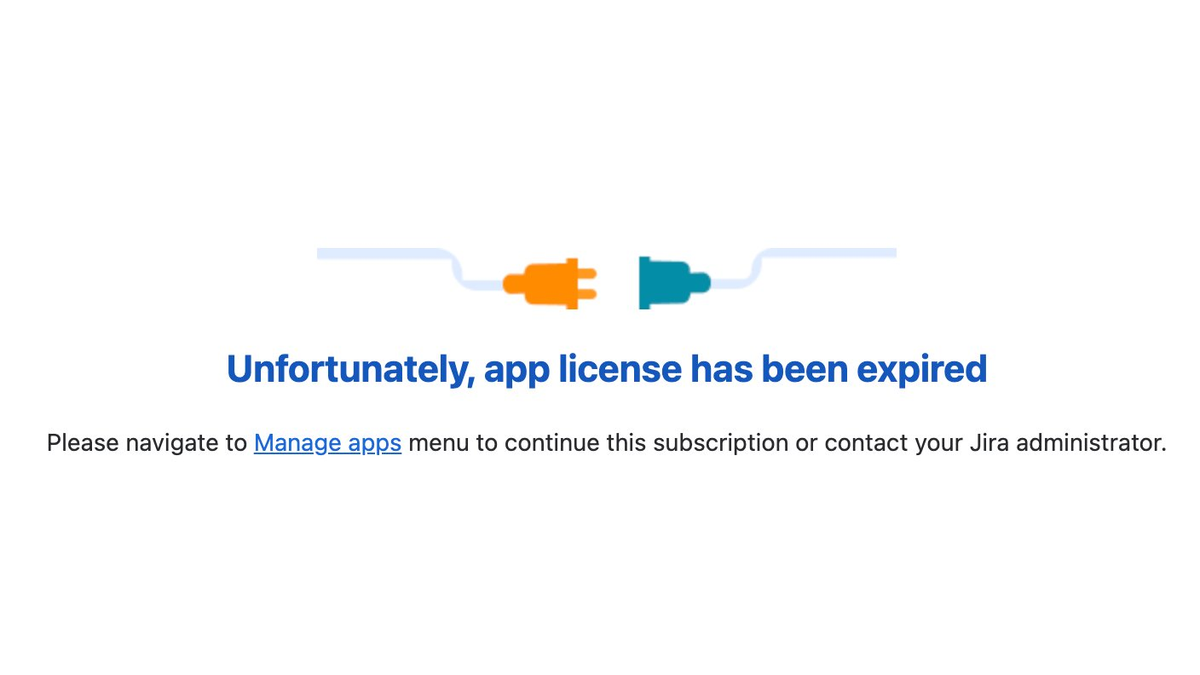
It’s easy to let things in your Atlassian account and Jira get stale. Things you’ve tried and are no longer using. Old projects that have sat unused for years. Automations you started but never finished. Jira loves to create new schemas left and right too. Every once in awhile, it’s worth the effort to do some spring cleaning of your environment.
Your installed apps are easy to let slip through the cracks and create real confusion for users.
It’s one of the first things I look for when getting access to a new environment.
You tried an app. Maybe even paid for it for awhile. After canceling the subscription and letting it lapse, it’s still hanging out in your environment. The apps still show in places throughout the UI. It creates a real mess when users and even other admins aren’t sure if a feature is broken or it’s just not available. It could be slowing down your site with things loading in the background that aren’t used. Users don’t understand the relationship between third-party apps and Jira. It’s all Jira to them and if something doesn’t work, it creates negativity that is hard to recover from.
To delete your unused apps, follow these steps.
First, make sure you’re no longer paying for them by reviewing your subscriptions. Under https://admin.atlassian.com/ -> Connected apps in the left navigation.
As a bonus, it’s also a good time to review the apps you are paying for. I bet you’ll find some cost savings in there and things running you didn’t remember.
The second step is to take a minute to review each app you want to uninstall and make note of it.
I would suggest using Claude or ChatGPT to take this list and ask what artifacts, workflows, fields, and any other configurations these apps have installed in your environment. You’ll need this list later for the final cleanup.
Now we can move to the third step. Once you’ve understood what you had installed and made some notes, you’re ready to hit that uninstall button. Under the connect apps menu, select view app details for the app. Once that screen loads, you’ll find the uninstall button at the top right.
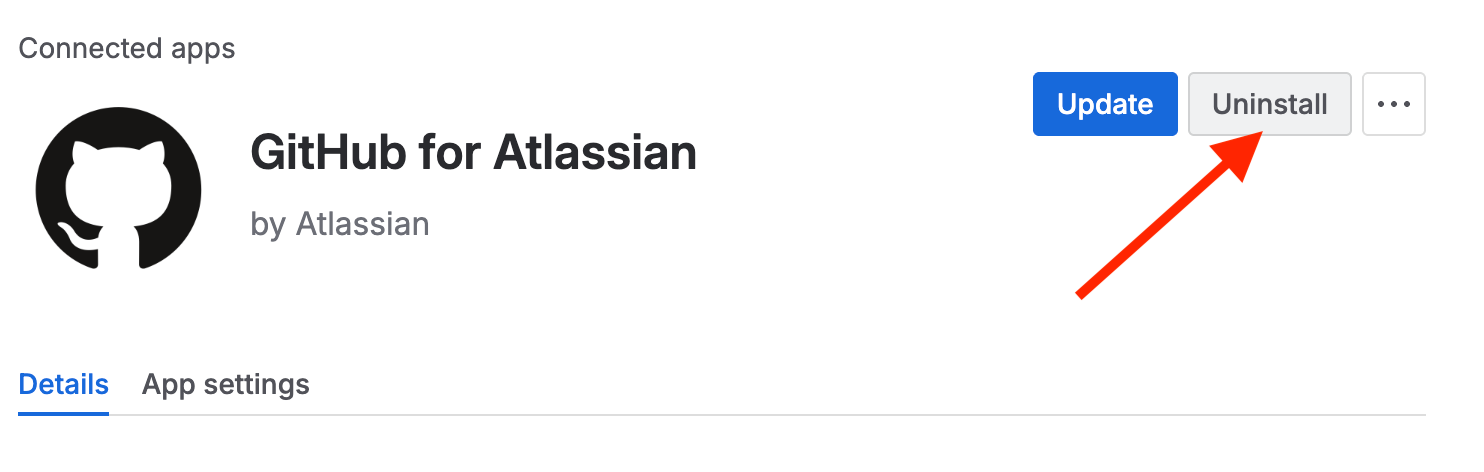
If you just canceled an app’s subscription, you may have to wait and come back after the period has ended. Just put a reminder on your calendar so you don’t leave it sit again.
Now that you've uninstalled the apps, take the time to handle the messier side of this process. You may encounter a bit of a rabbit hole.
Now we can use the list of changes our AI helper built for us to look around the system for additional fields, field types, workflows and other configurations that were installed. The AI won’t catch everything but it can help you know where to look. Some things to look for:
- Check for data in fields that are being used by your team
- Check for issue types in active use
- Check for added permissions and notifications
- Check for any groups, users or services accounts you may have added to support the app.
If the app added any new fields or work item types, I would suggest creating a migration plan or confirming they are still helpful options for your team for them to remain in the system. For example, QA apps tend to add new work item types and fields. There is no problem keeping them if they are helpful to your team.
The last part is updating any schemas and configurations to remove anything added by the app. They generally will have some prefix or identifier. There is no harm in keeping them behind the scenes but I find these things easier to deal with while you’re doing the cleaning, than trying to figure out years later.
I’d suggest once you’ve done the heavy lifting on this exercise, to create a procedure for your Jira admin teams to follow when subscribing and unsubscribing from any app. A Jira environment without one isn't too different from a messy backlog. The old things accumulate because people are afraid to touch them, and you end up working around the mess. These steps are a lot quicker when you can handle them with one app in the moment you've finished with it.
Taking the time to purge your system of unused apps will create a better experience for your users.
No more broken links, trial messages, and unusable features showing up in your UI. As your team grows, it makes it easier to onboard and saves your sanity with troubleshooting later.
This is necessary work to keep your Atlassian environment healthy and easy for your users to focus on their work. If you need some advice or extra hands, connect with me to talk through an Atlassian housekeeping project.