
3 Ways I’m Using Microsoft's Copilot Cowork
Pre-call research. Follow-up drafts. Friday action item lists. These are the three things I've handed off to Microsoft's Copilot Cowork Agent. · Read more →
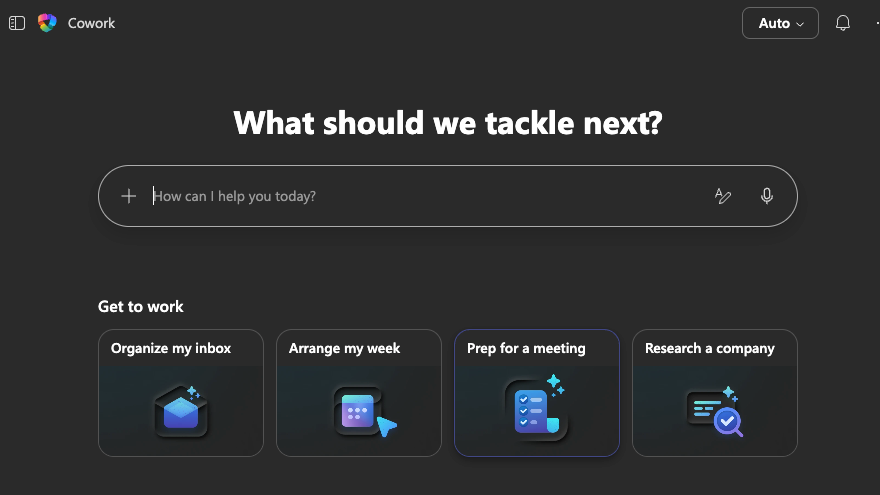
Microsoft Copilot Cowork Agent has saved me time and nudged me on work I tend to push off. Microsoft’s recently released Copilot Cowork agent builds on top of Anthropic’s models and their Cowork tool. The agent feels like a genuine step in the right direction for Microsoft. It’s working without the hard stumbles of previous attempts by Microsoft at reliable agentic automation.
It will take you just a couple minutes to get started. You’ll need to add the Copilot Cowork Agent to your environment.
- Navigate to https://m365.cloud.microsoft.com
- Go to the add agents option
- Search for Copilot Cowork
If you’re not seeing it, it’s likely frontier features are not available in your environment. Check out my post on enabling these features to get the most out of your Microsoft 365 Copilot subscription. If you’re not the admin of your environment, go bug them to get it added. It’s worth dealing with some potential Frontier beta issues to maximize your Copilot license.
The first thing I put it to work on is the pre-call research I do for a new connection.
As part of my work, I’m constantly meeting new people and having virtual calls to get to know them. My previous flow was to take time before that call to do some research on them and the work they are doing. I would leverage AI tools to give me an overview and recommendations for the call. I would also poke around on their LinkedIn profile and company page.
Now, I’ve got Copilot Cowork doing that work for me.
On Sunday nights, it is looking at my calendar, determining if what’s on my call appears to be a new contact, and then building a summary for me. It provides a basic overview of these calls in the email body and then attaches a more detailed breakdown in a Word document.
It’s already saved me from scrambling trying to do it before a call and brought a sense of clarity heading into my week.
The second place I’ve put it to work is in the follow-ups to my calls.
It’s something I tend to procrastinate on if I don’t do it immediately after the call. I’m giving it a transcript and telling it to prepare a draft in my email for the reply. For a lot of calls, this is a quick thank you, and some next steps.
Honestly, I don’t even use most of it. I still find AI writing overly wordy. What it does for me is give me a simple outline, I clean it up or rewrite most of it. This idea is less about removing work from my plate. What it’s actually giving me is something to react to and a nudge rather than the blank draft to start from that I will push off.
How is this any different than using a standard LLM chat for the draft? It’s actually putting the draft email in outlook for me to review. What it does for me is remove friction. The friction of starting and the friction of copy/pasting. The Agent could take it all the way to send and I could spend more time refining in the chat directly in the future.
The only thing that doesn’t work for me in this use case is the “Sent by Copilot Cowork” it automatically adds to the end of the email. I hate those signatures. Who cares what device or method I sent the email from.
Unfortunately, you can’t prompt copilot to remove it. From Copilot:
“That footer is automatically added by the system to all outgoing emails — it's not part of the draft content, so I'm not able to remove it from this end. You'd need to delete it manually in Outlook before you send, or check if there's a setting to disable it.”
If I wasn’t already heavily editing the draft in Outlook, that would be adding friction.
My third use case is a Friday morning list of anything left open for the week.
I want to make sure I can close out my week without any major gaps. It’s looking across everything for commitments I made, unanswered questions directed at me, meeting action items or requests awaiting my decision.
None of these are exactly earth shattering. I had tried to get similar versions of this working within the Microsoft world prior to the introduction of Cowork and they were just not reliable. I believe that because it’s built on top of Anthropic’s models, Microsoft's AI has become an actually useful “copilot”. They are things you either end up taking a few minutes to do yourself or kick off to an assistant to put together for you. Those little things add up so it’s easy to get buried or feel productive when you’re actually just doing busy work.
The Cowork Agent runs entirely in the Microsoft cloud. While this will limit the use cases for work involving local files or outside of the Microsoft world of documents, it opens new possibilities for heavy Microsoft and enterprise users. For one thing, I don’t need to worry about it going rogue on my local machine or leave my machine running for it to work. This cloud focus gives it a legitimate differentiator from Claude Cowork.
Where to start with Copilot Cowork
- Cowork works best when you focus on an outcome for a task rather than giving it step-by-step guidance on how to accomplish it.
- Start with how you review your week or prep for meetings, then set that up as a scheduled task in Cowork
- Think about one mundane thing you’re doing regularly and ask the Cowork agent to help you do it.
The best use cases for Copilot Cowork are repeatable tasks within the Microsoft Cloud.
Think of something on your list that you do every week across your email, chat, or calendar and you can probably find ways to hand it off to Cowork. The best way to get started is to focus on the outcome and then you can work with the tool to get it doing what you need.
This is the kind of work I do with teams every day. I love finding ways to make the tools work for you. If you’re interested in some hands-on help to get your tools working in your workflow, let’s work together.
Did you find this post helpful? Share it to your network